AI Assistant Overview
Quick Overview
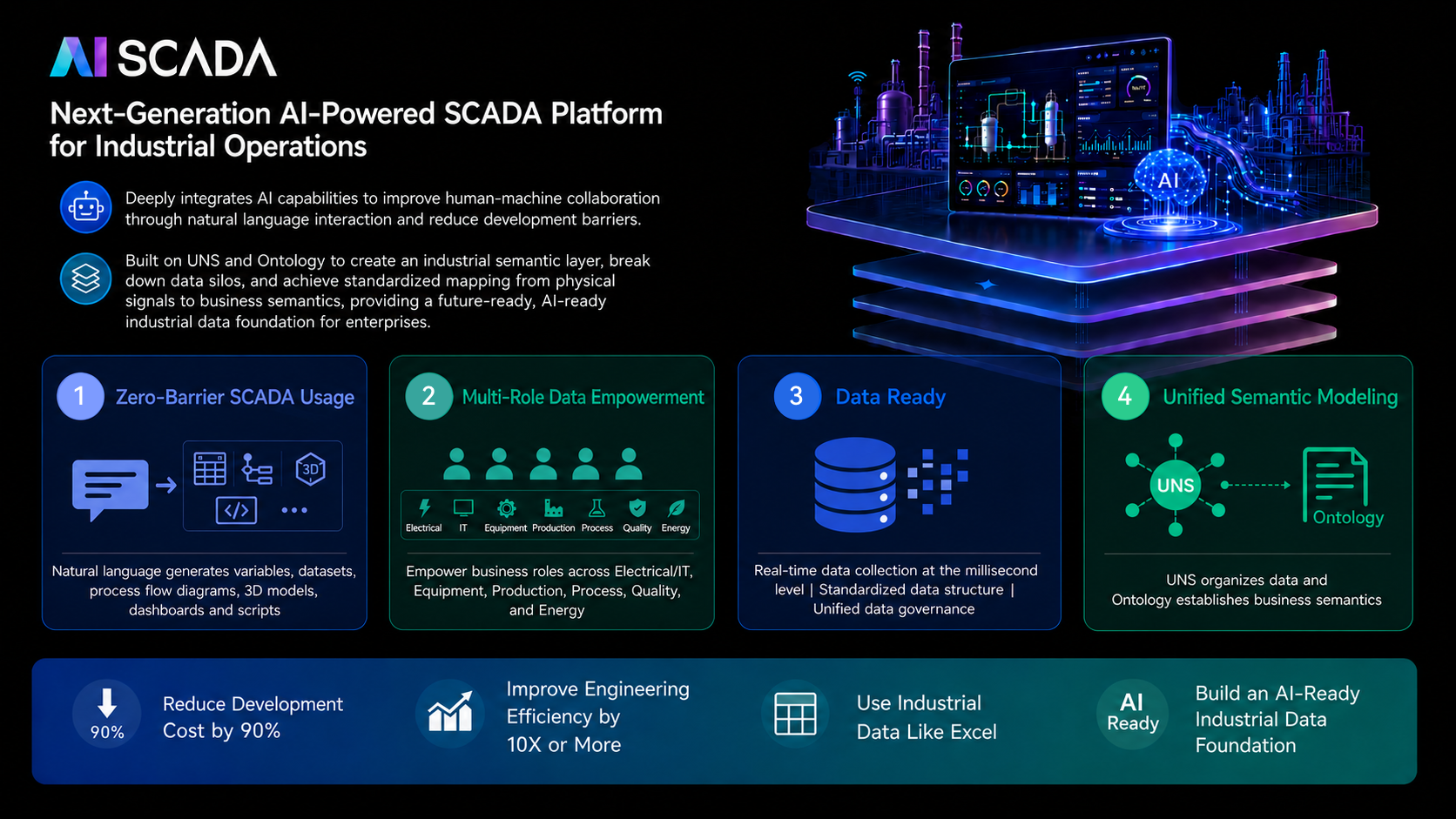
The CMS AI Assistant is a built‑in intelligent engineering development assistant. Through natural language interaction, it helps you quickly complete key tasks in engineering development. Without requiring complex programming, UI design, data modelling or 3D modelling skills, the AI can assist in generating monitoring pages, importing tag point tables, creating data tables, generating 3D equipment models and equipment image assets, writing control scripts, and completing smart binding of page tags and assets, increasing engineering development efficiency by more than 10 times.
Target Audience
- OT engineers: Complete engineering development quickly. No need to deeply learn front‑end design, programming syntax, database configuration and 3D modelling.
- System integrators: Shorten project delivery cycles and increase project profit margins.
- Process engineers: Describe requirements via natural language and participate in solution building without relying on professional developers.
- New users: Lower the learning barrier and quickly get started with the CMS system.
- Project managers: Quickly create demonstration prototypes to accelerate solution validation and customer communication.
- Data and operations personnel: Quickly complete tag storage, historical archiving, statistical table creation and operational data accumulation.
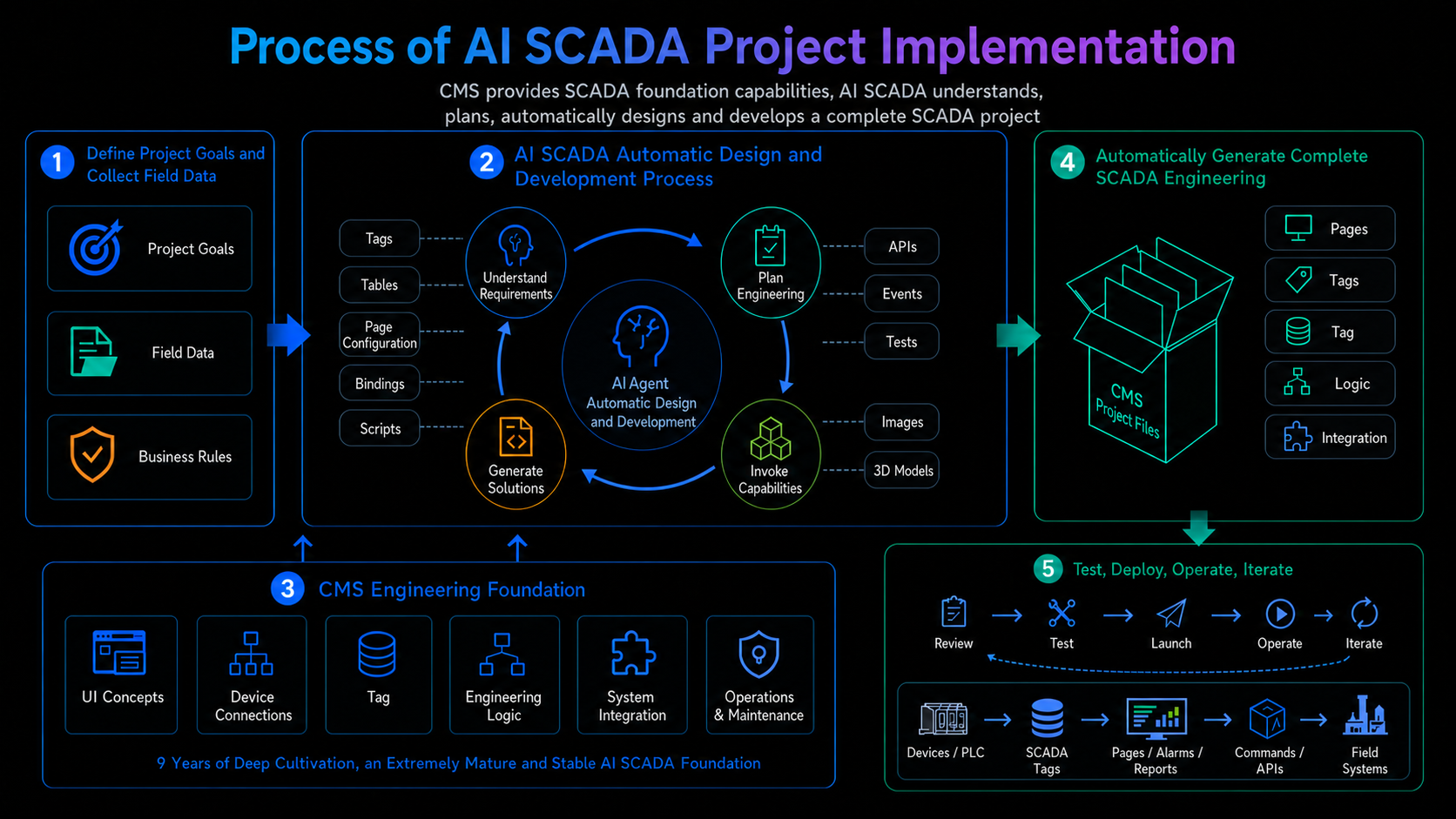
Process of AI SCADA Project Implementation
AI Assistant Feature Comparison
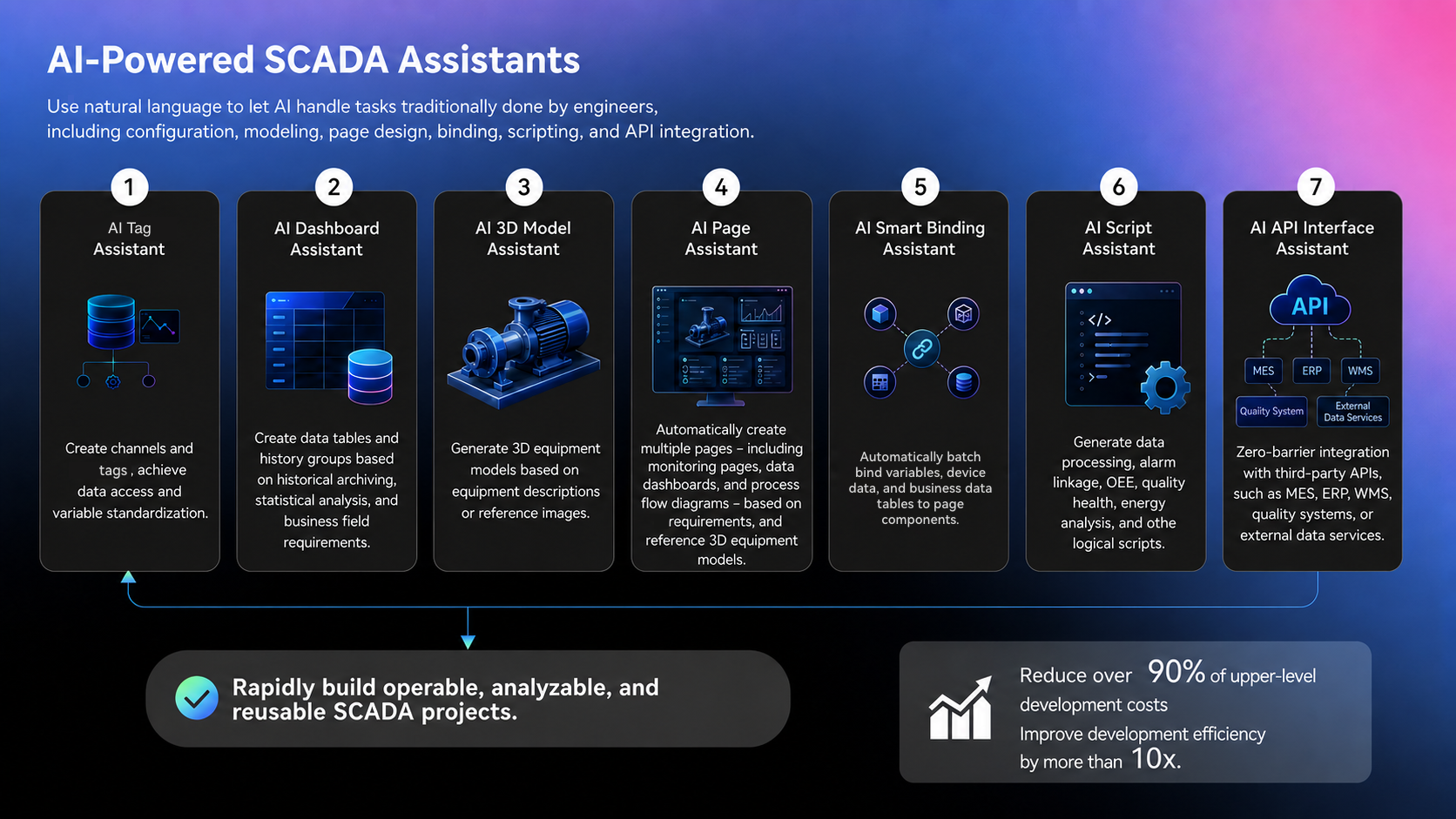
| Feature | Primary Use | Input | Output | Typical Scenarios |
|---|---|---|---|---|
| AI Tag Assistant | Batch creation of channels and tags | Natural language, .csv / .txt point table attachments | Channel and tag import plan, tag storage results | Device point table import, protocol identification, tag standardisation |
| AI Table Assistant | Create history database archiving and business data tables | Natural language, field lists, archiving rules, tag scope | Table creation plan, history group plan, data table configuration | Historical archiving, energy consumption statistics, business data management |
| AI Page Assistant | Quickly generate monitoring pages and dashboards | Natural language description, reference images, asset templates | Complete visual page | Create equipment monitoring pages, production dashboards, data large screens |
| AI Smart Binding | Automatically match tags to components | Generated page, device channel scope | List of tag binding suggestions | Tag configuration after page generation, batch binding |
| AI Script Assistant | Automatically write and optimise scripts | Natural language description of logic requirements, existing scripts | C# script code, explanations and optimization suggestions | Data processing, system integration, automation control |
| API Integration Assistant | Generate API interconnection configurations | Natural language, cURL, JSON parameters, API documentation attachments | API configuration plan, pre‑debugging results, interconnection item configuration | MES, ERP, cloud platform interface integration |
| AI Model Assistant | Generate equipment 3D models | Equipment reference images, equipment description, polygon count | Reusable 3D equipment model assets | Equipment 3D display, 3D component referencing, digital twin pages |
| AI Image Assistant | Generate and enhance equipment image assets | Equipment description, reference images, style and visual requirements | Equipment images ready for configuration pages and asset library | Equipment main images, on‑site photo enhancement and background removal, unified assets for similar equipment |
Feature Entry
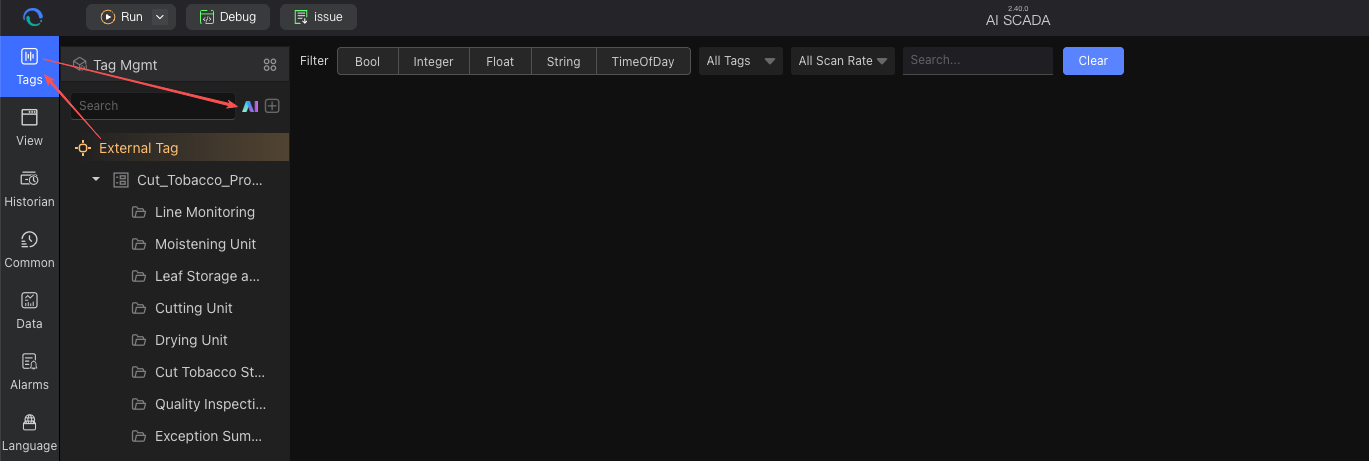
1. AI Tag Assistant Entry
Open the AI assistant in the tag management or device integration module, enter tag creation requirements, or upload .csv / .txt point table files.
2. AI Table Assistant Entry
Open the AI assistant in the corresponding module according to your data type:
-
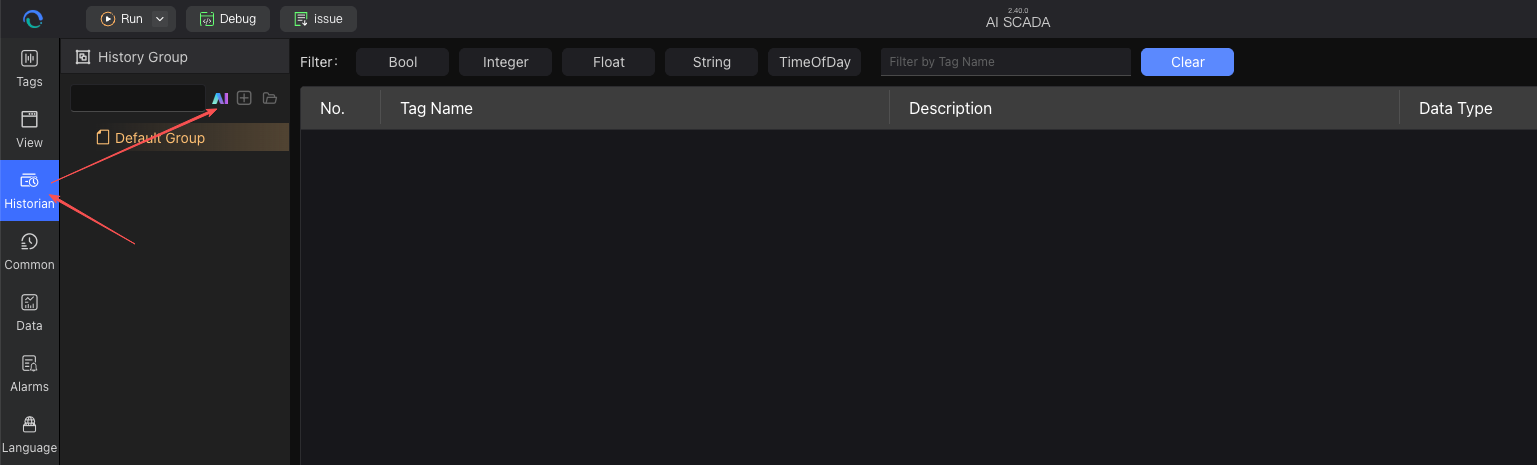
History Database: For time‑series data archiving, history group creation and batch tag binding
-
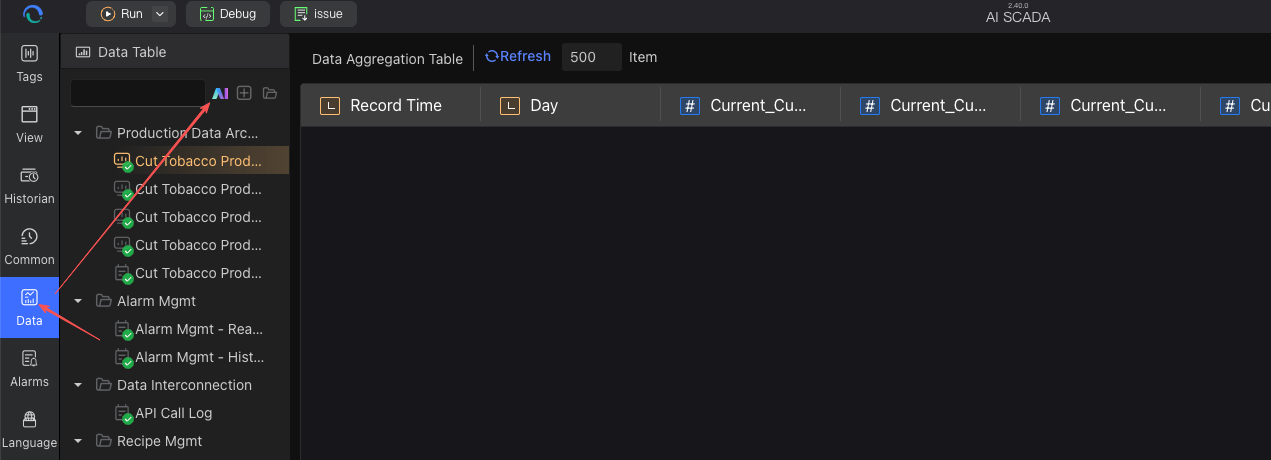
Data Management: For table creation configuration of business data tables, aggregation tables, basic data tables, etc.
3. AI Page Assistant Entry
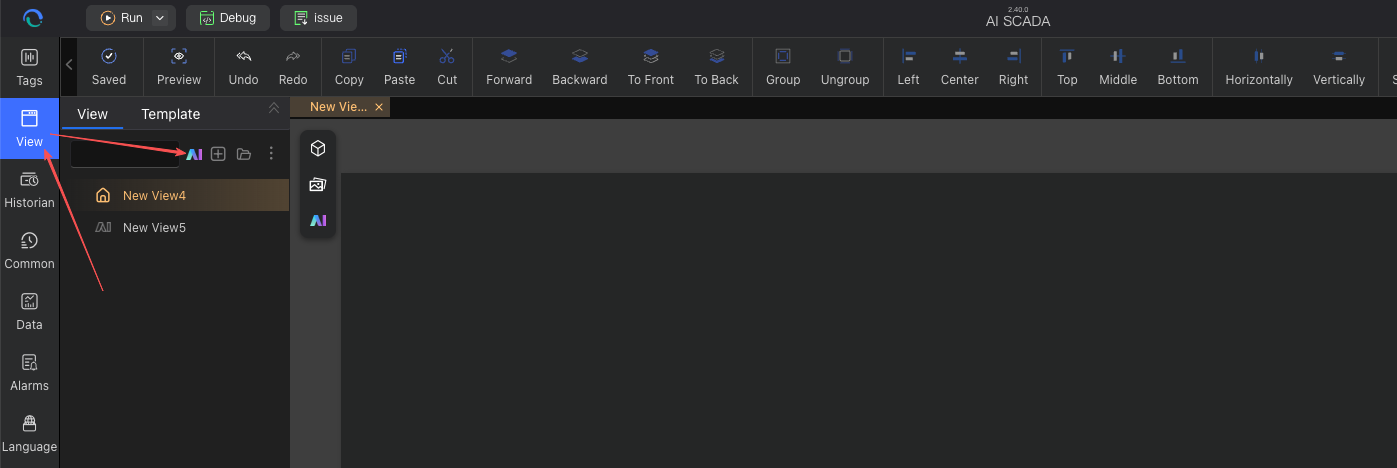
In the page editor, click the "Add AI Page" button above the page list, or open the AI assistant inside the page editor.
4. AI Smart Binding Entry
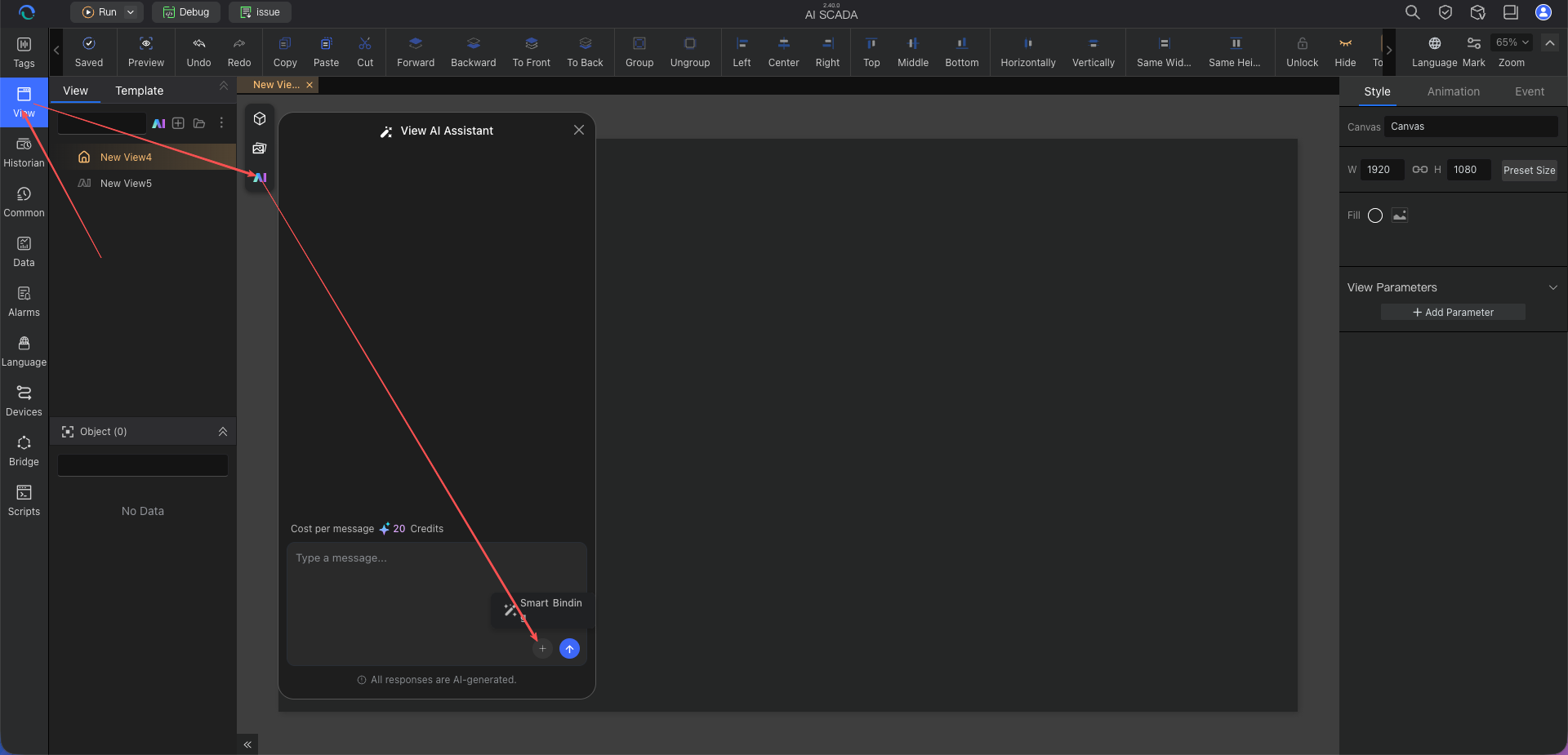
After the AI generates the page, click the "Smart Binding" button in the page editor’s AI page smart assistant.
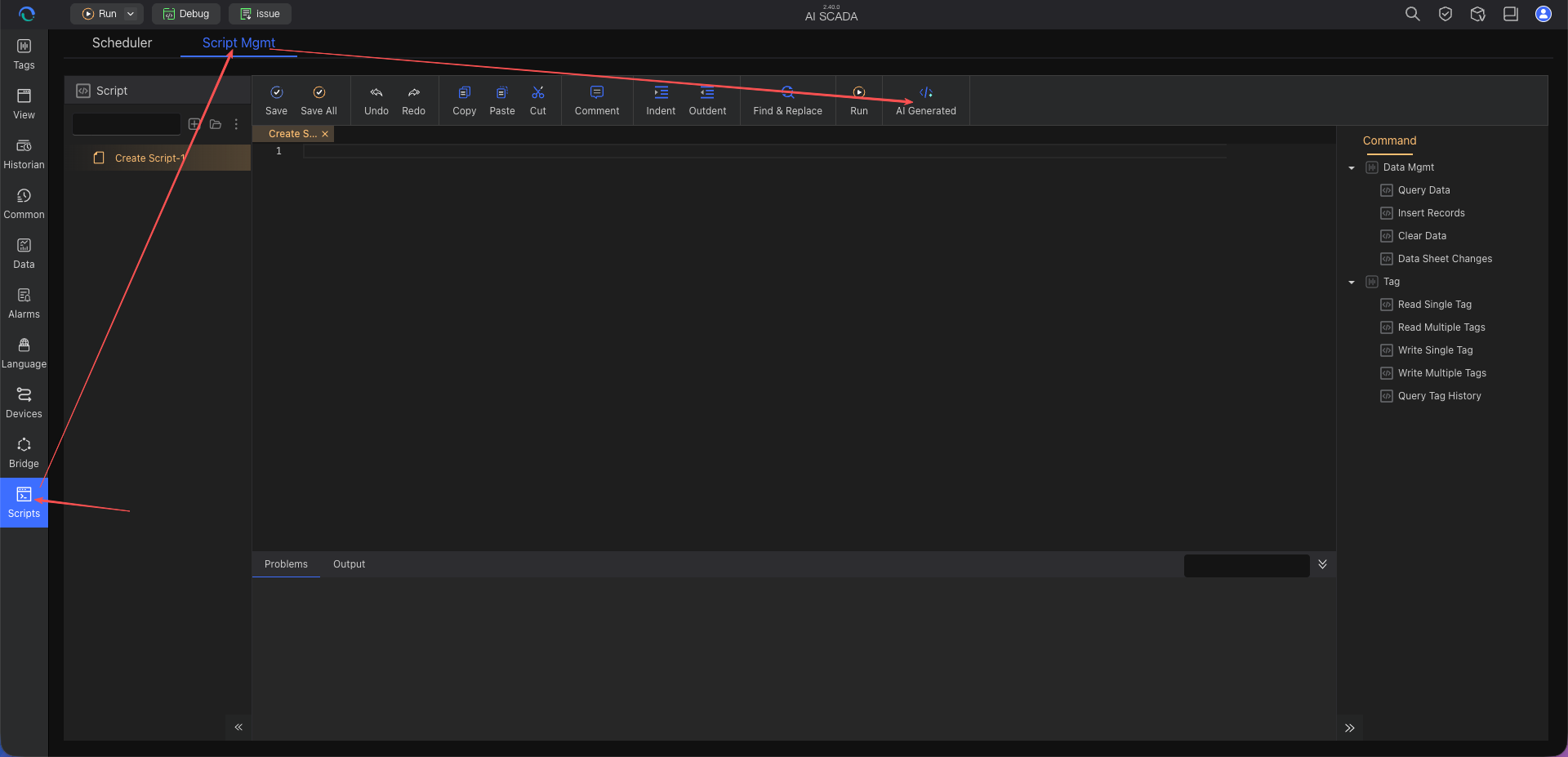
5. AI Script Assistant Entry
In the script editor, click the "AI Generate" icon on the toolbar.
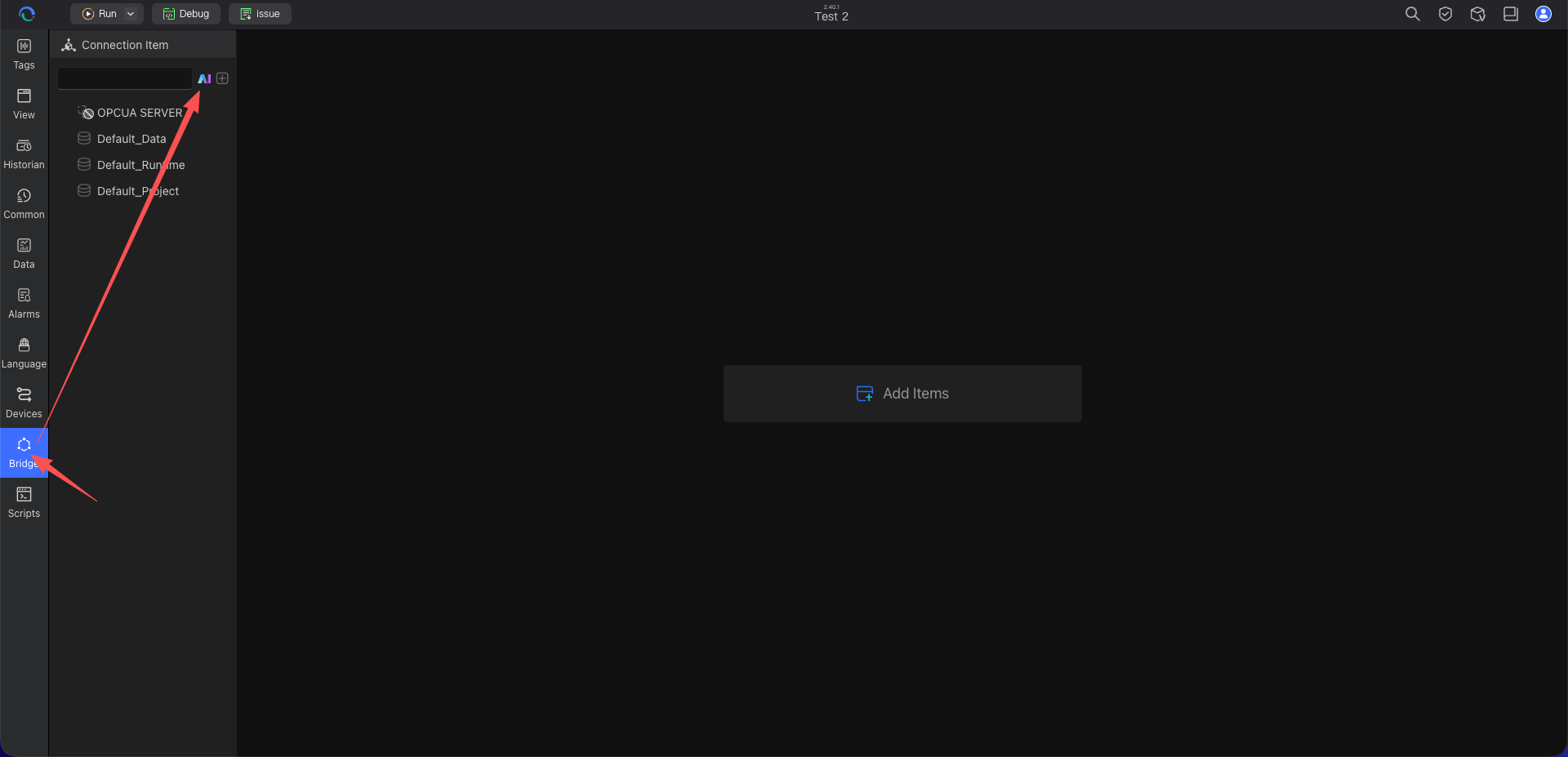
6. API Integration Assistant Entry
Open the "API Integration Assistant" on the API interconnection item or interface configuration page. Enter interface integration requirements, paste cURL/JSON payloads, or upload API documentation for the AI to parse and generate the configuration plan.
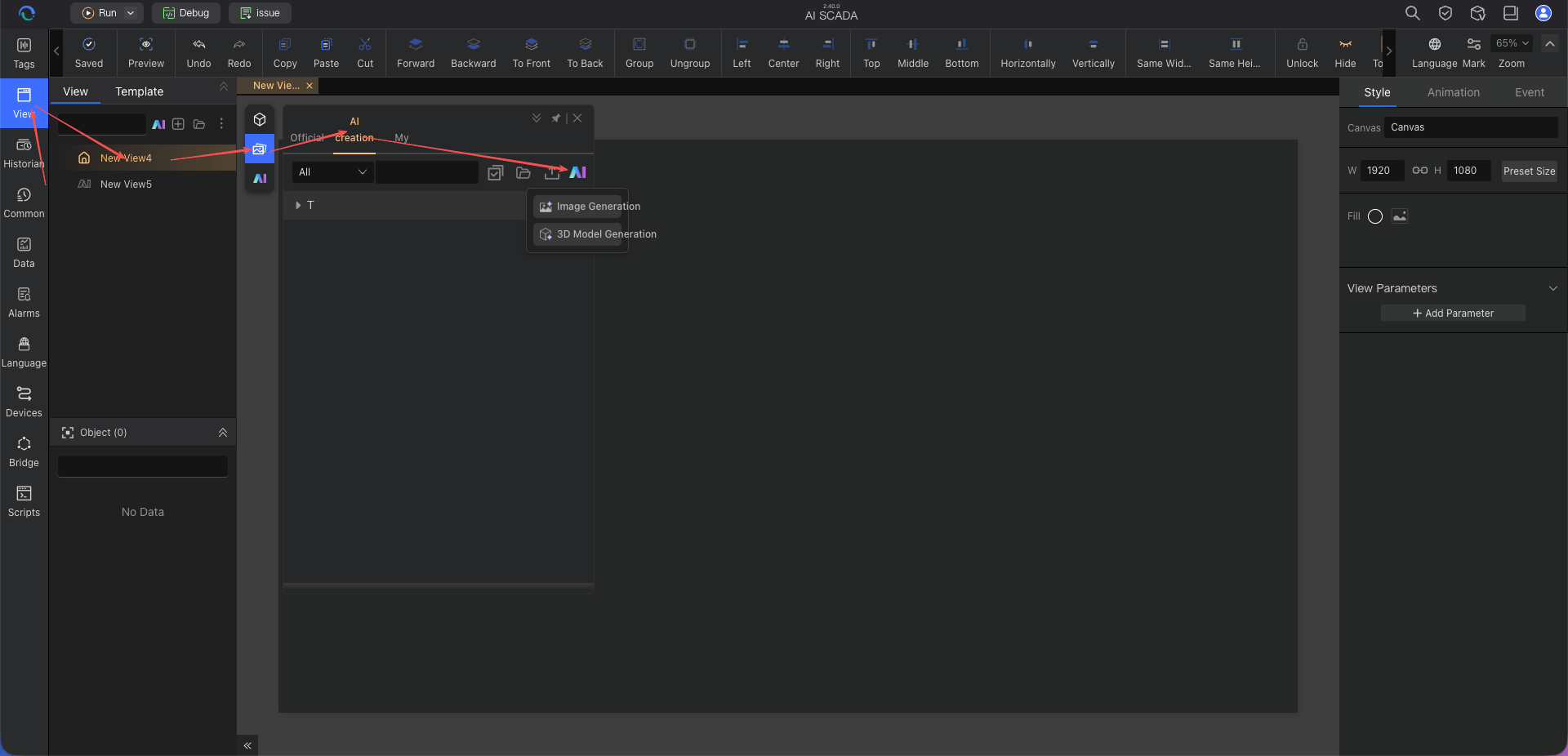
7. AI Model Assistant Entry
Go to the Model Assistant page, select Image‑to‑3D or Text‑to‑3D, upload an equipment reference image or enter an equipment description to generate the model.
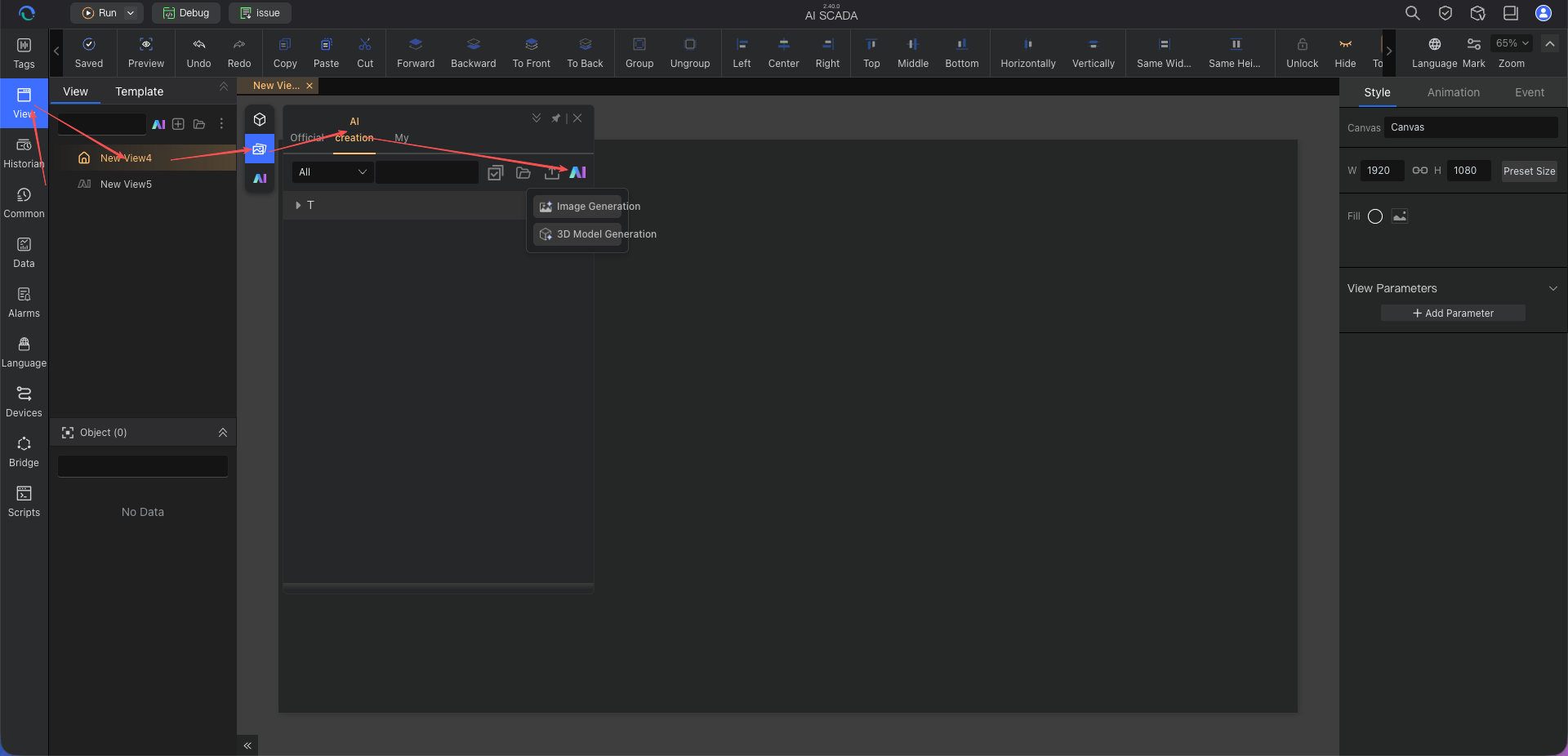
8. AI Image Assistant Entry
Go to the AI Image Assistant page. You can directly enter an equipment image prompt to generate an image, or upload an on‑site equipment photo or reference image for the AI to enhance the equipment subject, improve texture and remove the background.
Credits
Earning Credits
- New user registration: receives an initial credit grant to experience AI features for free.
- Purchase & recharge: buy personal credit packages through the account centre.
Credit Consumption
Different AI assistants consume credits based on generation type, task complexity and system configuration. The following are examples of common rules; actual consumption is subject to the product interface.
| Feature | Consumption Rule | Typical Consumption |
|---|---|---|
| AI Tag Assistant | Each tag parsing, plan generation or import execution | From 30 credits |
| AI Table Assistant | Each table creation plan generation or configuration execution. Each tag parsing, solution generation or execution import. | From 30 credits |
| AI Page Generation | Each generation or conversation edit | From 20 credits |
| AI Smart Binding | Each tag binding (part of the page generation chain) | From 20 credits |
| AI Script Generation | Each generation, explanation, optimization or conversation modification | From 10 credits |
| API Integration Assistant | Each interface parsing, plan generation, pre‑debugging or configuration write | Subject to interface display |
| AI Model Assistant | Each Image‑to‑3D or Text‑to‑3D model generation | From 30 credits |
| AI Image Assistant | Each equipment image generation, reference image enhancement or conversation adjustment | From 20 credits |
- Each AI assistant usually shows a consumption prompt before execution, please confirm based on the interface.
- Every actively initiated conversation interaction consumes the corresponding credits; replies to AI assistant questions do not consume credits.
Checking Credits and Recharging
- Click the avatar in the top‑right corner → "Account Center" → "Credit Management".
- View current credit balance and consumption history.
- Click the "Recharge" button to purchase a personal credit package.
- It is recommended to keep sufficient credits in your account to avoid interruptions during development.
- For complex projects, first test with simple descriptions and generate the full version only when satisfied.
- Describe requirements clearly in one go to reduce the number of back‑and‑forth modification conversations.
- Before executing tag import, table creation or binding, carefully review the confirmation plan generated by the AI.
Prerequisites
- Account requirement: A CMS account must be registered and logged in.
- Network requirement: Ensure a stable network connection for the AI service to function properly.
- Credit requirement: Sufficient credits in the account to use AI features.
- Requirement preparation: Have a clear understanding of your engineering requirements and prepare a clear description.
- Data preparation: For tag import or table creation, it is recommended to prepare point tables, field lists, tag naming conventions and archiving rules in advance.
- Asset preparation: For generating pages, models or images, it is recommended to prepare equipment reference images, on‑site photos, style descriptions, equipment appearance descriptions or page usage purposes.
Quick Start
Using the AI Assistant for the First Time
- Start with a simple task: First try generating a simple monitoring page to get familiar with the AI’s interaction style.
- Learn prompting techniques: See Usage Tips & Best Practices to better understand how to describe requirements.
- Gradually complete engineering data: Import point tables with the AI Tag Assistant, then create archive or statistical tables with the AI Table Assistant.
- Refine display assets: Use the AI Model Assistant to generate 3D equipment models and the AI Image Assistant to generate or enhance equipment image assets as needed.
- Complete page and data connection: After generating a page with the AI Page Assistant, complete tag binding via AI Smart Binding.
- Integrate third‑party systems: Configure API interconnections with MES, ERP, cloud platforms, etc., via the API Integration Assistant.
- Make good use of the review mechanism: All AI‑generated content can be reviewed and modified to ensure it meets actual requirements.
Recommended Learning Path
Frequently Asked Questions
Q1: Can AI‑generated content be used directly in a production environment?
A: Pages, tags, data tables, models, images and scripts generated by AI must be tested and validated before being used in production. Recommended workflow:
- AI generates an initial version.
- Review the AI’s proposed plan, fields, tags, bindings and script logic.
- Validate functionality in a test environment.
- Fine‑tune and optimise based on actual conditions.
- Deploy to production after thorough testing.
Q2: What if the AI misunderstands my requirements?
A: You can:
- Redescribe the requirements using clearer, more specific language.
- Refer to the prompt templates in Usage Tips & Best Practices.
- Continue the conversation to modify the AI’s generated result.
- Describe complex requirements step by step – first confirm the plan, then execute the generation or write.
- Manually review tag import, table creation and binding results before applying.
Q3: Does the AI Assistant support offline use?
A: No. The AI Assistant requires a connection to cloud services for intelligent analysis and generation. Please ensure a stable network connection.
Q4: How to manage credits when multiple team members use the assistant?
A: Recommendations:
- Each member uses their own account and purchases personal credit packages.
- Establish team guidelines for credit usage to avoid waste.
- Regularly review credit consumption records and optimise usage strategies.
- Build a team prompt library, tag naming conventions and table creation templates to reduce trial and error.
Q5: What is the relationship between the Tag Assistant, Table Assistant and Smart Binding?
A: They solve problems at different stages:
- AI Tag Assistant: Integrates device point tables into the system to form standard tags.
- AI Table Assistant: Converts tags or business fields into historical archive tables, aggregation tables or business data tables.
- AI Smart Binding: Establishes binding relationships between page components and tags/data tables, allowing the page to display real data.
It is recommended to follow the sequence: "tag integration → data accumulation → page generation → smart binding".
Q6: What is the difference between the API Integration Assistant and the AI Script Assistant?
A: The API Integration Assistant is primarily used for generating standard HTTP API configurations, response mapping, pre‑debugging, and writing interconnection items. The AI Script Assistant is used for complex business logic, data processing, conditional evaluation, and multi‑step automation workflows.
- For standard API requests, headers, bodies, and response mapping: prefer the API Integration Assistant.
- For complex calculations, loop processing, or multi‑system orchestration after an API call: use the AI Script Assistant.
Q7: When is it appropriate to use the Model Assistant and Image Assistant?
A: When pages need more realistic equipment display assets:
- Use the AI Model Assistant to generate 3D equipment models when 3D equipment display is needed.
- Use the AI Image Assistant to generate equipment images when you need main equipment images, schematics, or enhanced on‑site photos with background removal.
- The generated models and images can be stored in the asset library and used together with the AI Page Assistant to improve page presentation.
Next Steps
- AI Tag Assistant – After mastering page generation, next learn about tag creation and point table import to prepare the tag foundation for subsequent data binding and engineering implementation.
- AI Table Assistant – After tags are integrated, further learn about historical archiving, statistical tables and business data table configuration.
- AI Page Assistant – First learn how to generate monitoring pages and data dashboards via natural language to quickly understand the AI assistant’s page generation capabilities.
- API Integration Assistant – When the project needs to integrate with MES, ERP, or cloud platform interfaces, learn how to quickly generate API interconnection configurations.